Search here or press/
Search
Open the bot, create or import a wallet, and fund it with native tokens to cover transaction fees. The full setup usually takes only a few minutes, but the security checks require careful execution and attention to detail.
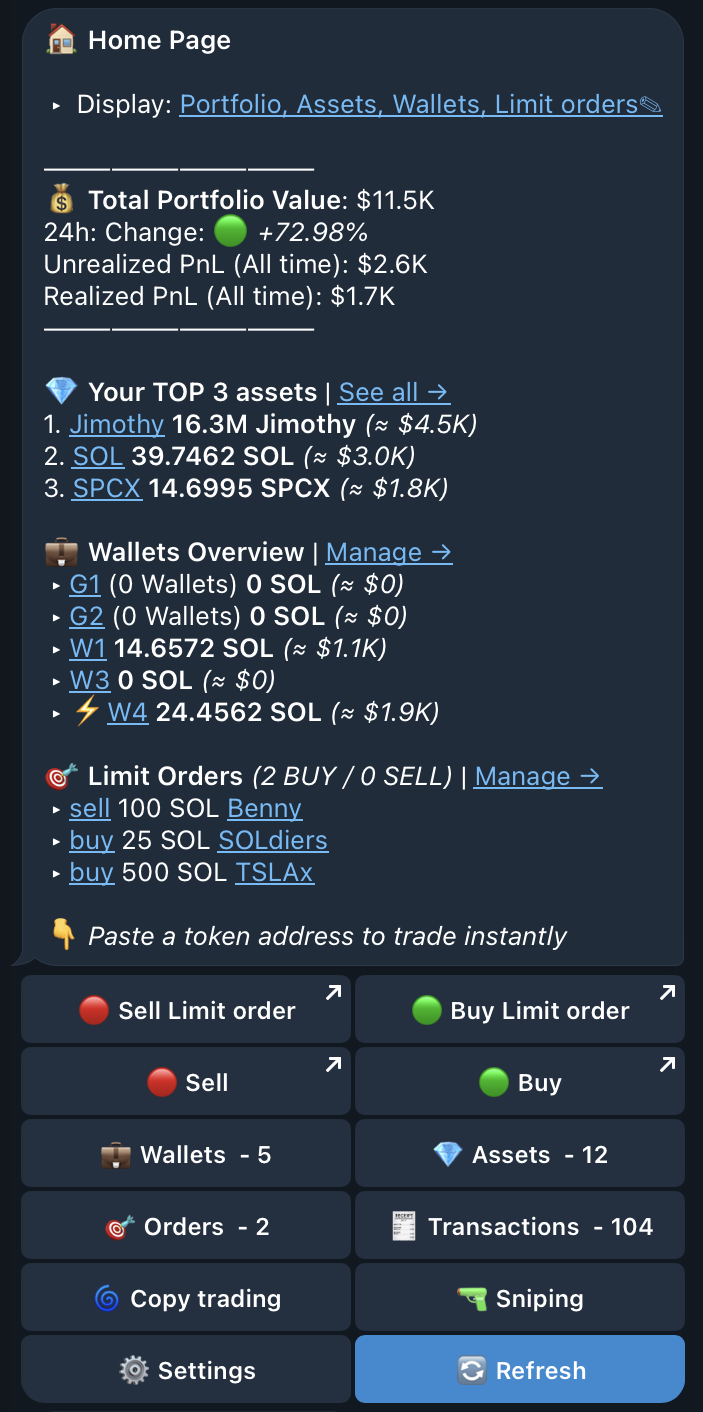
Use the Launch bot button in this documentation or open QZAR from qzar.io. Always use links from the official website or docs to avoid phishing copies.
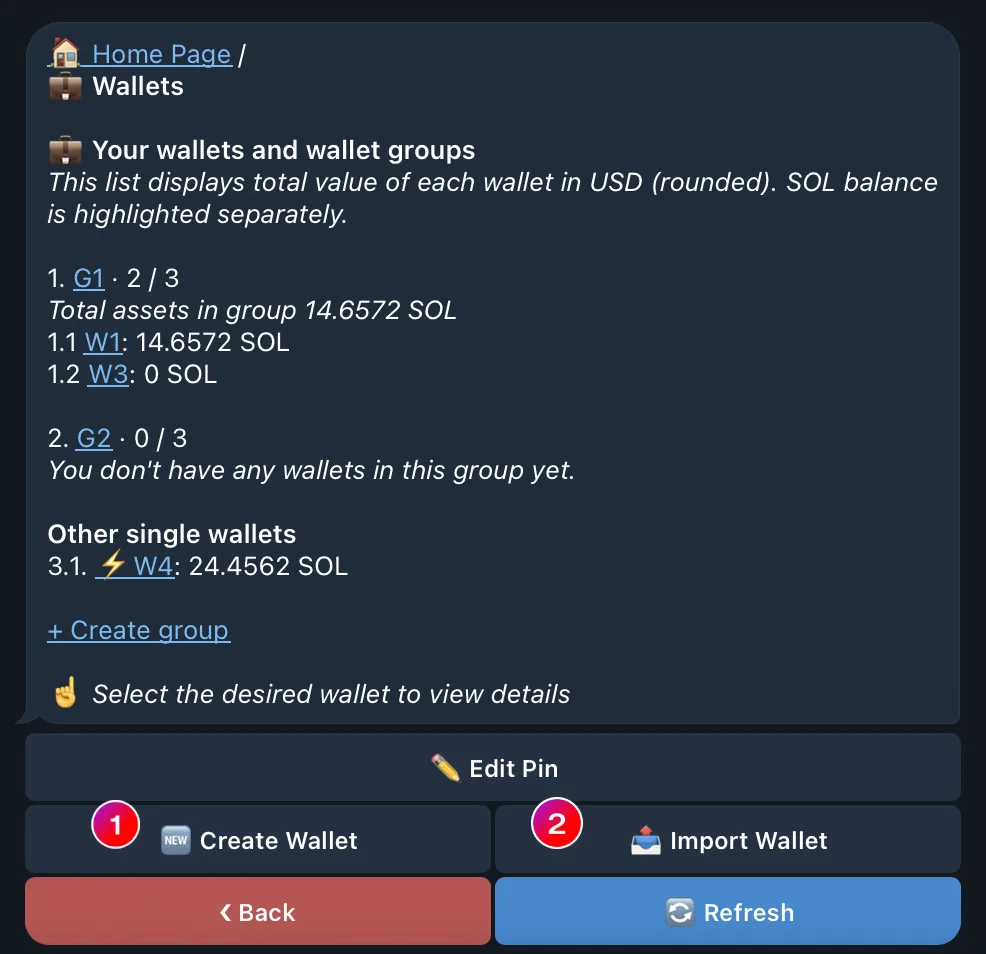
Open Wallets, then choose Create Wallet or Import Wallet:
QZAR stores the wallet credential in encrypted form so the bot can sign requested and automated transactions. You can export the private key from the wallet menu. Please remember that your private key gives full access to your wallet.
Open the wallet and select Deposit. Copy public address, then send asset over the network from another wallet or exchange.
Send a small test transfer first. After it arrives, keep enough native token for your trade and payment for base fees, priority fees, and possible token-account creation.
From the home menu, paste a token address. QZAR searches known pools and opens the trade view for the selected asset. Check the token name, token address, pool, liquidity, market price, and wallet balance before proceeding.
For a first buy, confirm each field:
Press buy or sell button, follow the processing steps, and wait for successful status. Open the Solscan link or Transactions to verify the signature and result on-chain.