
Search here or press/
Search
Buy and Sell in QZAR lets you execute instant on-chain swaps directly from the platform using supported liquidity sources. A market swap uses the best available route at execution time, and the displayed quote is not guaranteed until the transaction is actually confirmed on-chain.
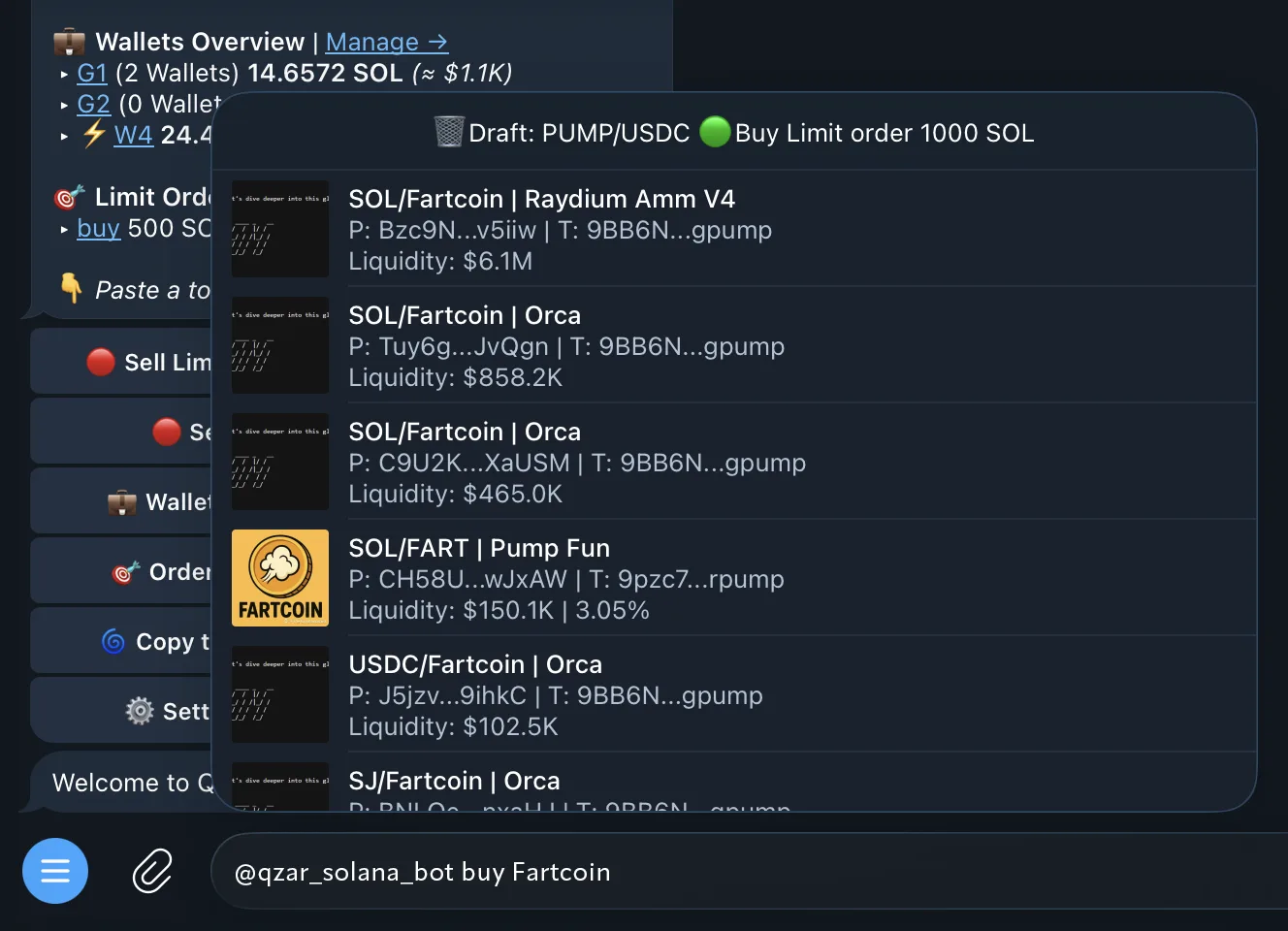
You can start by entering a pool address, token address, or token name into the platform search field. QZAR then returns matching markets and liquidity venues so you can open the swap screen for the relevant asset and route.
You can start from:
Before entering the amount, confirm the token mint (contract address) and pool so you trade the intended asset. Many tokens share the same name or ticker.
On the swap screen, QZAR displays token overview, market price, balance information, pool details, and transaction settings before execution. This allows you to review the full trading context and configure execution parameters in a single interface.
QZAR has direct execution for selected pool types and uses routed swaps for others. Venue discovery does not guarantee that a trade is available: swaps can be blocked by missing liquidity, pool migrations, token restrictions, or routes that cannot satisfy the configured amount and slippage.
The Buy and Sell screens share a common set of execution settings, with operation‑specific behavior applied where needed:
| Field | What it controls |
|---|---|
| Transaction | Immediate Swap or conditional Limit Order |
| From wallet | One wallet, several wallets, or a wallet group |
| Amount | Fixed SOL/USD/token amount or percentage where supported |
| Source tokens | Ordered funding preference for routed buys and the first configured settlement token for sells |
| Transaction mode | Standard or MEV-protection submission |
| Slippage | Maximum acceptable price deviation |
| Gas fee | Recommended, Turbo, or Custom priority value/tip |
| Auto-sell | Optional TP, SL, or combined exit rule |
| Preset | A saved combination of reusable trade settings |
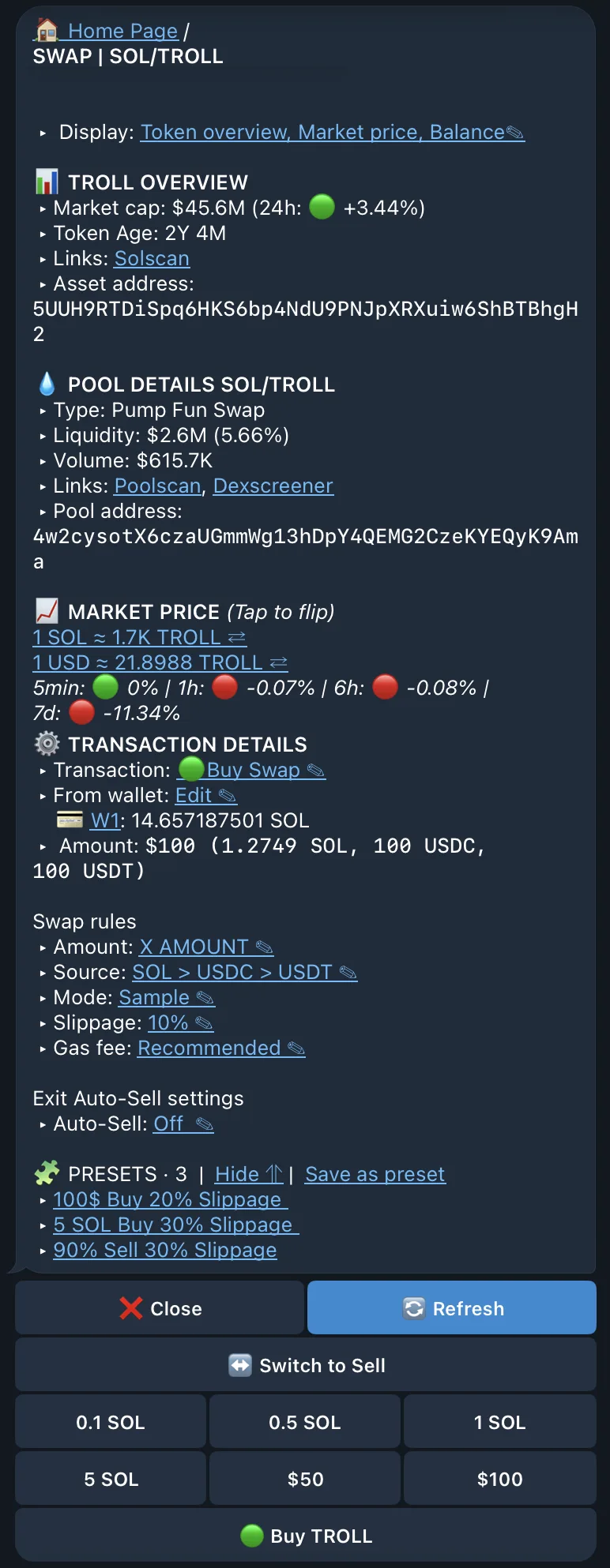
The Sell flow is used when you want to reduce or fully close an existing token position. Sell uses the same swap framework and execution settings as Buy, but can have Sell‑specific behavior configured via presets:
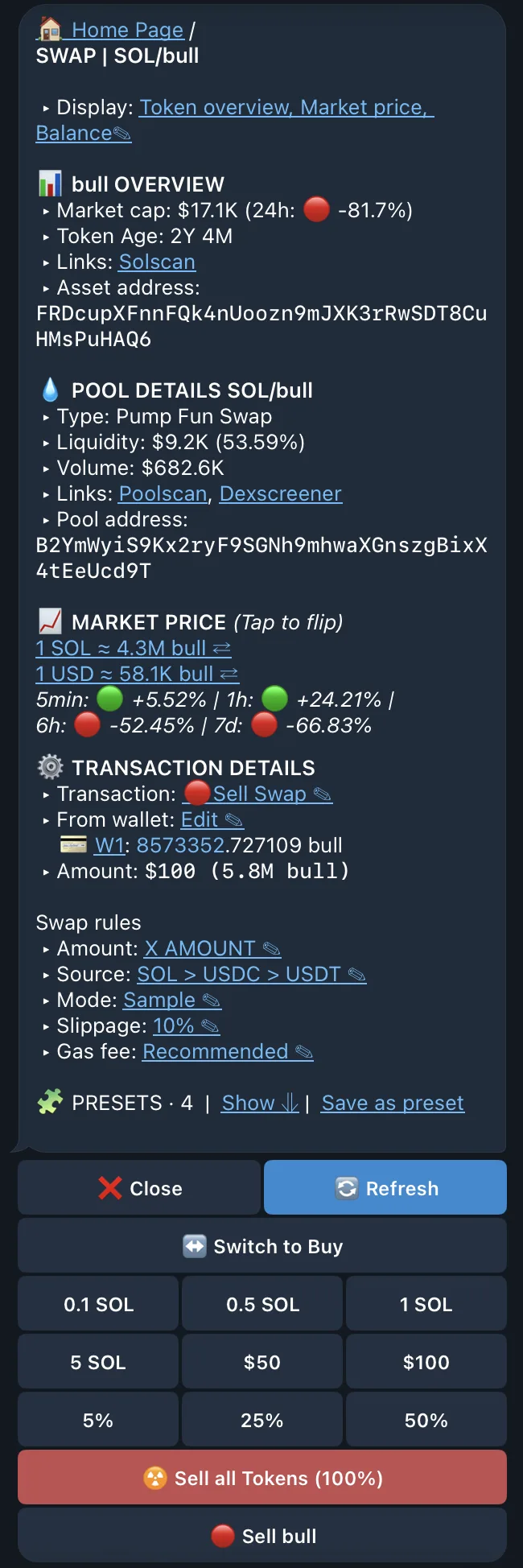
QZAR has direct execution for selected pool types and uses routing for others. Venue discovery does not guarantee a route. A trade can be unavailable when liquidity is missing, a pool is migrating, the token is restricted, or the route cannot satisfy the amount and slippage limits.
When you select several wallets or a group, the configured amount applies to each selected wallet. Check the total exposure before confirming:
Total intended buy ≈ amount per wallet × selected wallets
Each wallet also needs its own native token for fee. Results may be different by wallet because transactions may be executed separately.
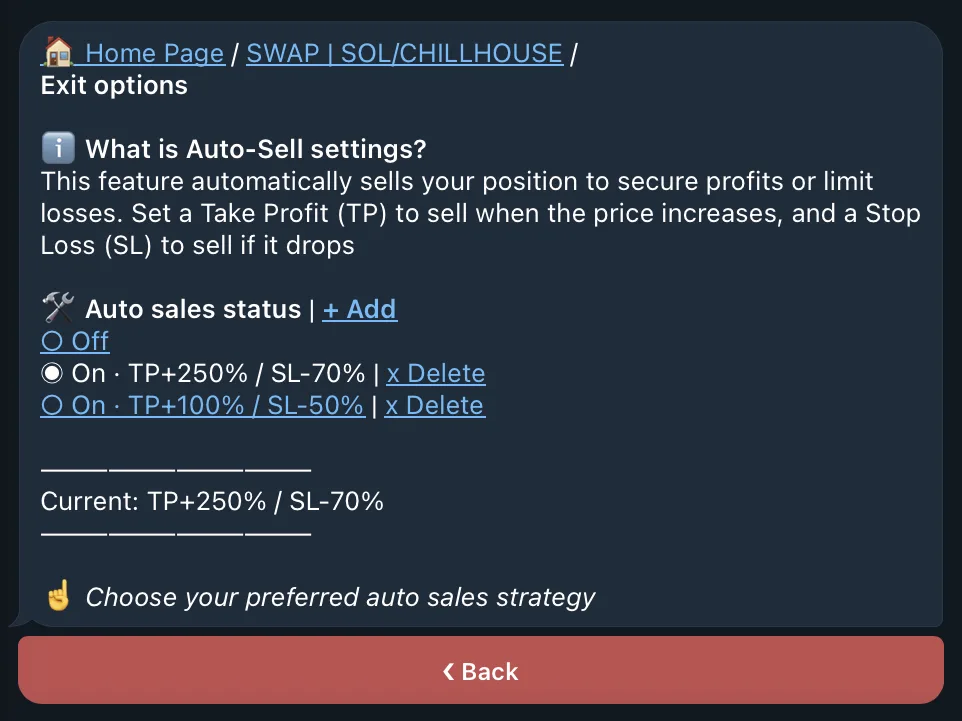
An auto-sell rule can attach exit conditions to a new buy:
250 → Take Profit at +250%-40 → Stop Loss at −40%250-40 → TP +250% and SL −40%Review the created order after the buy. An exit trigger does not guarantee the expected fill. Execution still depends on balance, route, liquidity, slippage, fees, and network state.
To keep execution predictable and safe:
Open the transaction signature in Solscan and check status, wallet, mint, amounts, and fees. Use Transaction History for QZAR's indexed view and FAQ / Troubleshooting if the result is unclear