Skip to content

Auto Trade

Auto Trade removes the confirmation menu after you paste a token/pool address. QZAR uses the default wallet and the Auto Trade template to execute a buy or sell immediately.

Auto Trade is not recurring DCA
Auto Trade is not recurring DCA. It is a fast action triggered by the token or pool source you send to the bot. For scheduled or laddered execution, use separate limit orders where appropriate.

Configure Auto Trade

  1. Open SettingsAuto Trade
  2. Choose Buy, Sell, or Disabled
  3. Set the amount
  4. Choose transaction mode: sample or mev
  5. Set slippage
  6. Choose gas fee
  7. Confirm the correct default wallet is marked with ⚡
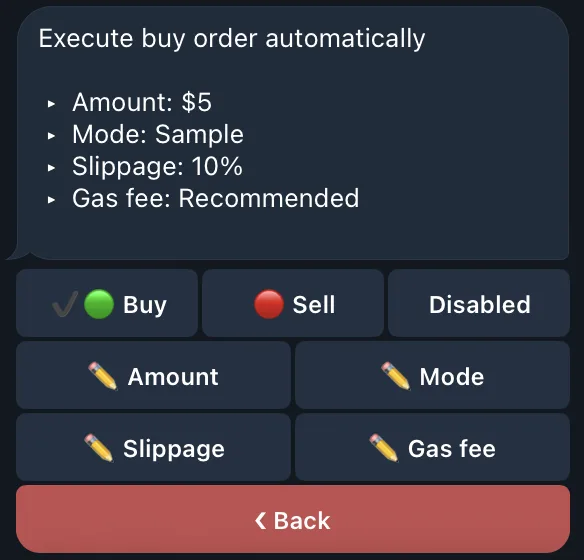
QZAR Auto Trade settings with buy or sell mode, amount, transaction mode, slippage, and gas fee

When Auto Trade is enabled, pasting a recognized token source can execute using those settings without showing the full trade menu first.

Buy vs Sell mode

  • Buy: uses the configured fixed amount from the default wallet
  • Sell: uses the configured sell amount/percentage from the default wallet
  • Disabled: pasting a token opens the reviewable trade menu

Before enabling

  • Practice the same settings through a manual swap
  • Use a dedicated wallet with a limited balance
  • Verify the source-token order and default wallet
  • Choose slippage appropriate for the assets you actually trade
  • Remember that a pasted scam address can trigger a real trade
A pasted address can execute immediately
When Auto Trade is enabled, treat every mint, pool address, and forwarded source as an execution request. Verify it before sending it to the bot; deleting the message afterward cannot reverse a landed transaction.

Stop Auto Trade

Return to SettingsAuto Trade and select Disabled. Closing platform does not change the saved Auto Trade mode.
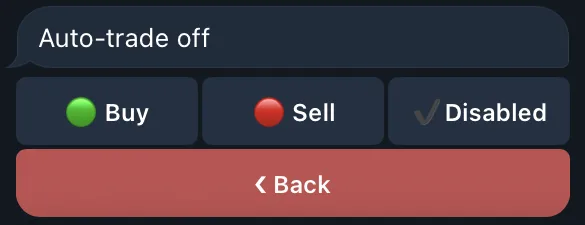
QZAR Auto Trade set to Disabled, so a pasted token address opens the reviewable trade menu again